

Claude Code Quick Start Guide#
In my 2025 Year in Review, I mentioned that Claude Code boosted my productivity by 20x over the past year. Some friends asked if I was exaggerating—not at all. If anything, I was being conservative.
This thing is essentially equivalent to having a $7,000/month engineer working for you around the clock, for just $200/month. A few months ago, a recent graduate asked me for job hunting advice. My only suggestion: figure out Claude Code—it’s more valuable than anything else.
Today’s tutorial shows you how to get up and running with Claude Code quickly. (Plus how to swap in alternative models at 1/10 the cost of Claude Opus)
What is Claude Code?#
Claude Code (CC for short) is an AI coding assistant from Anthropic. Think of it as an intelligent secretary that does work for you—you describe what you need in plain language, and it executes. What can it do? Almost anything you can do on a computer:
- Write code, modify code, debug programs
- Translate articles, polish writing, process documents
- Data analysis, handle Excel/PDF files, summarize information
- Build websites, create small tools, write scripts
For example: the Pigsty homepage at pigsty.cc was generated with a single command to CC. Can beginners use it? Yes. CC isn’t just for programmers. You don’t need to know how to code—just type and describe your needs. “Theoretically” anything you can do with a computer, CC can do too.
A Key Distinction#
Note: CC is not a large language model—CC is an application that uses LLMs for coding, an intelligent Agent. Think of it as the cockpit, while the LLM is the engine. Good cockpit + good engine = great results.

There are plenty of AI coding tools on the market—Cursor, Copilot, Cline, Trae, etc.—but CC is currently the undisputed king of this field. CC’s default pairing is Claude Opus 4.5, currently the strongest coding model. Best cockpit + best engine = maximum performance.
By default, CC connects to Anthropic’s own Claude models, but CC also supports swapping engines and connecting to other providers’ models.
This is the core idea of today’s tutorial:
Use the best cockpit (Claude Code), but swap in cheaper alternative engines.
Cost Considerations#
Using Claude’s top-tier models can get expensive—the Max subscription runs about $200/month. But here’s the thing: CC supports alternative model providers.
For example, Chinese model provider Zhipu recently released GLM 4.7, which has quite decent coding capabilities. They claim it’s “only 2% behind Claude Opus 4.5”—from my testing, it can handle medium-difficulty tasks just fine.
Most importantly: it’s much cheaper.
| Option | Monthly Cost | Capability Level | Notes |
|---|---|---|---|
| Claude Max | ~$200/month | Top-tier (100%) | Best performance |
| GLM 4.7 Max Annual | ~$20/month | Decent (85%) | Budget alternative |
Think of it this way: the original is a $100K/year senior engineer costing $200/month. The alternative is an $85K/year engineer costing just $20/month. Slightly less capable, but at 1/10 the price.

So if you ask me whether GLM 4.7 can beat Claude Opus 4.5 in capability—definitely not (maybe it could beat the lite Haiku version). But in cost-effectiveness, GLM 4.7 is unbeatable.
I use it myself as a backup when my Claude quota runs out. I’m planning to use openCode with GLM in Pigsty as a DBA Agent—scanning logs and monitoring dashboards. At this price, using it for grunt work doesn’t hurt at all.
Quick Start#
So how do you get started? Three commands, done in seconds:
curl -fsSL https://repo.pigsty.cc/claude | bash   # Download and install
source .claude/env; ccm set glm YOUR_APIKEY        # Configure API key
glm                                                # Start CC (GLM mode)
Works on Linux/macOS. Let me walk you through the details.
Step 1: Open Terminal and Run the Command#
You’ll need to enter commands in a terminal. What’s a terminal? Just a window where you type commands. Don’t be intimidated—think of it as “operating your computer by typing.”
- macOS: Press Command + Space, type “Terminal”, hit Enter
- Windows: Press Win + R, type “powershell”, hit Enter
You’ll see a window (dark or light) with a blinking cursor. That’s your terminal.
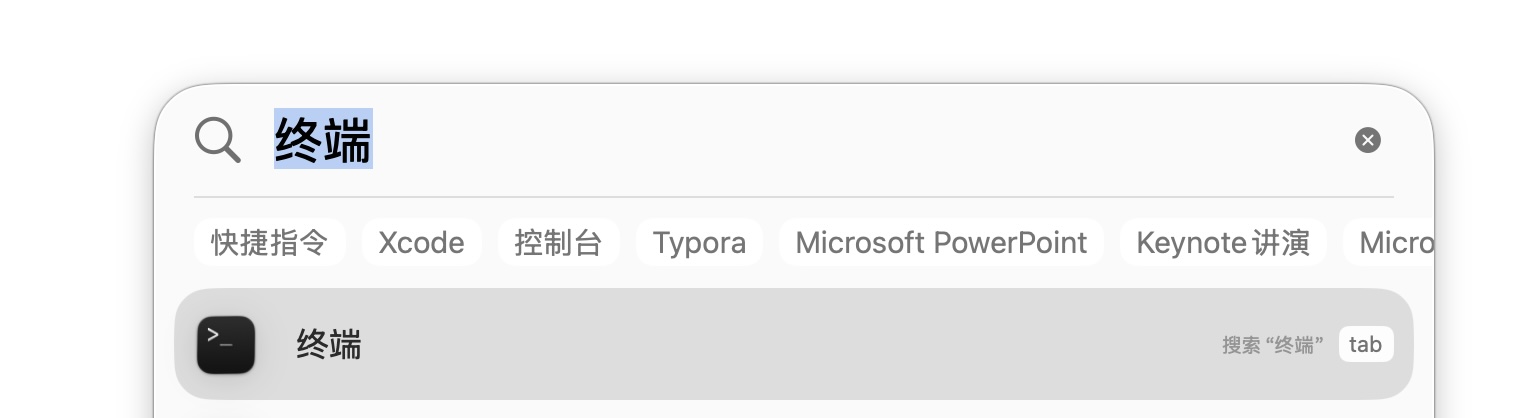
Copy and paste this command into the terminal, then hit Enter:
macOS / Linux:
curl -fsSL https://repo.pigsty.cc/claude | bash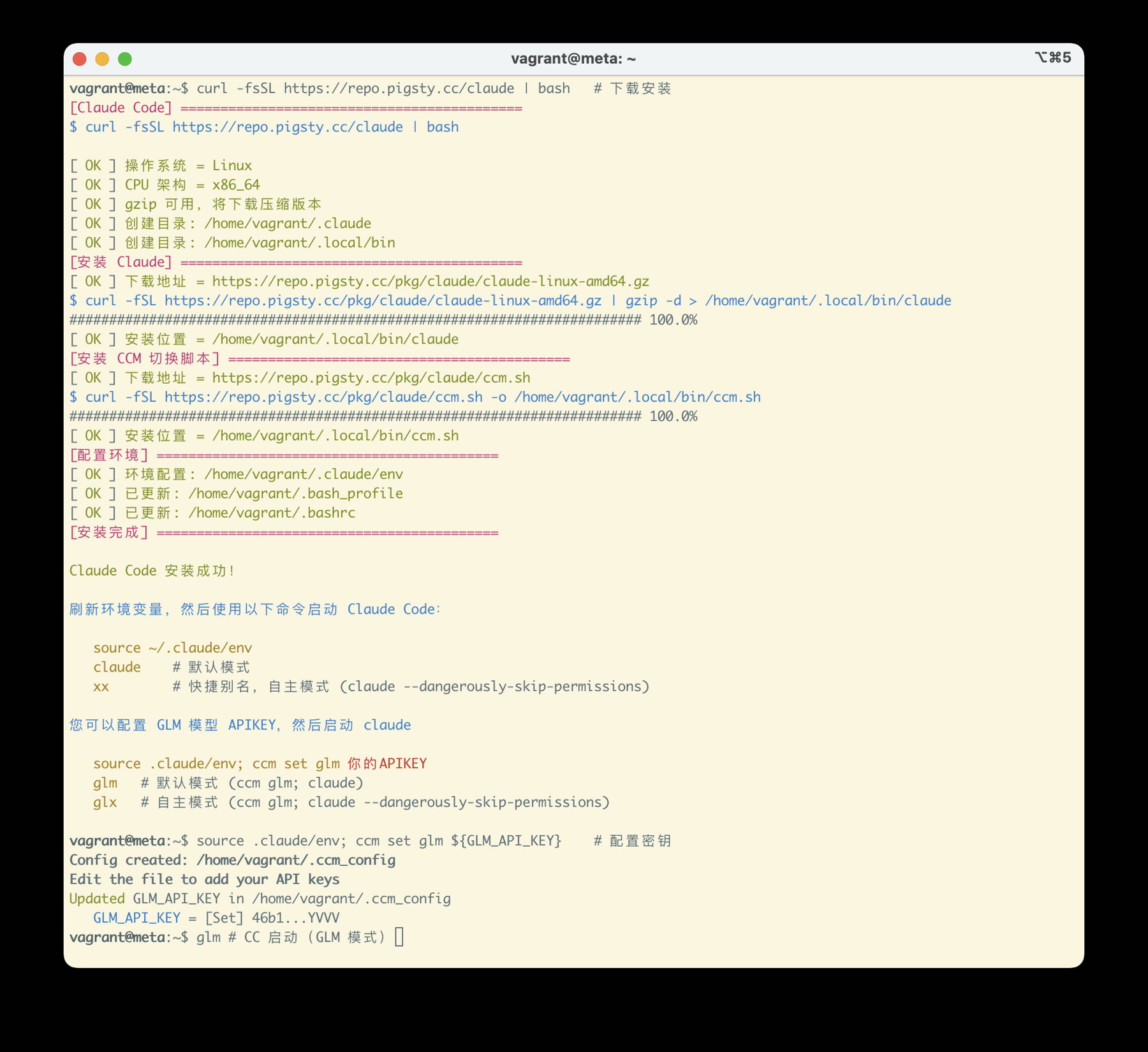
For Windows, I haven’t used it in a while, so this install script was written by Claude based on the Mac/Linux version—untested, for reference only:
irm https://repo.pigsty.cc/cc.ps1 | iexWait a few seconds and installation is complete. I’ve hosted the Claude Code binary on a mirror repository for easier access.
Once CC is installed, if you launch it directly (claude), it will connect to Claude’s official models by default.
To use an alternative model like GLM 4.7, you need to configure it.
Step 2: Get an API Key#
Since we’re using GLM as the engine, you’ll need an API key from Zhipu.
- Go to https://bigmodel.cn/ and register/login
- Click “API Keys” in the top right
- Click “Add new API Key”, give it any name
- Copy and save the generated key string (you’ll need it later)
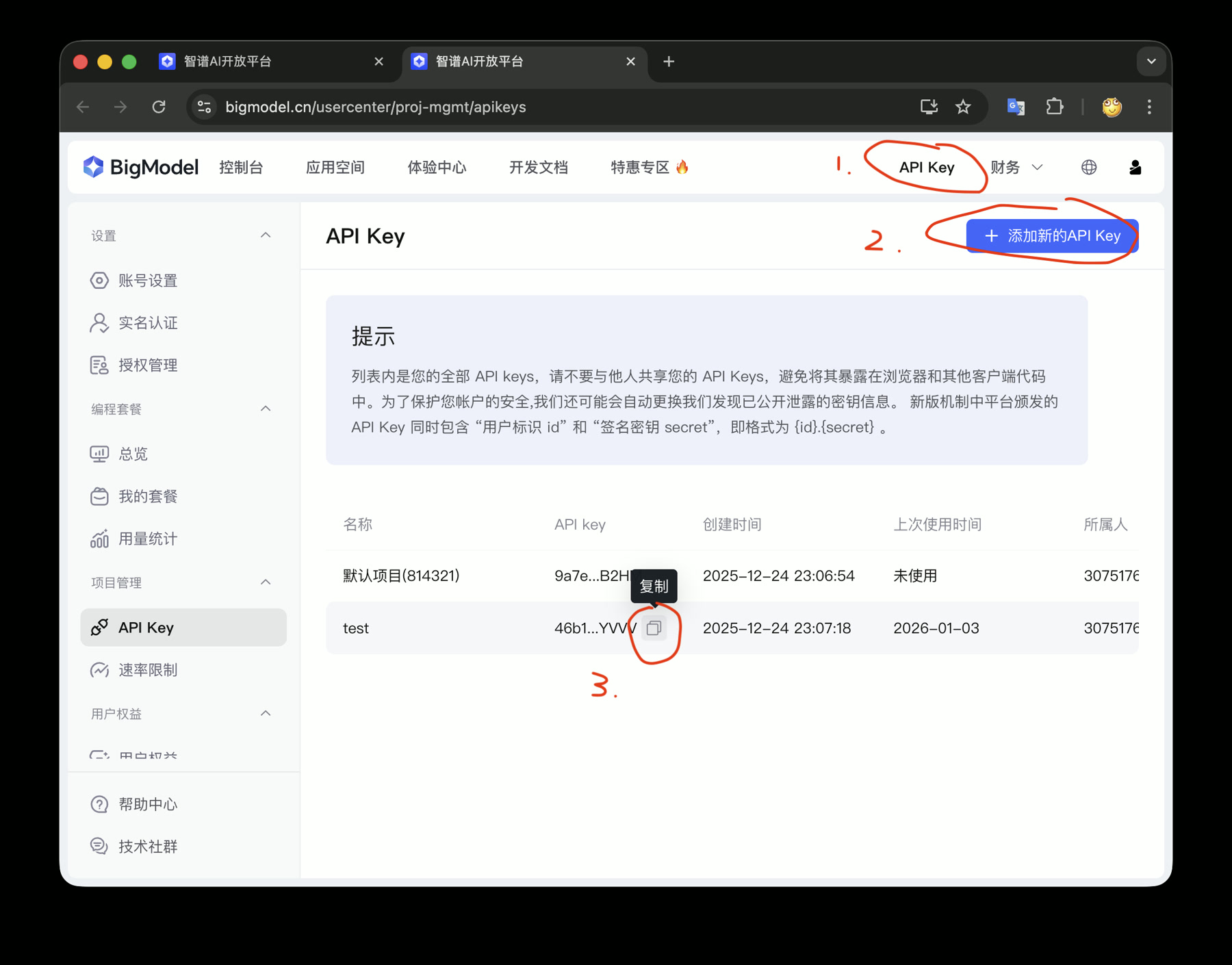
New users get free trial credits—enough to experiment for a while without paying. If you like it, you can buy a subscription.
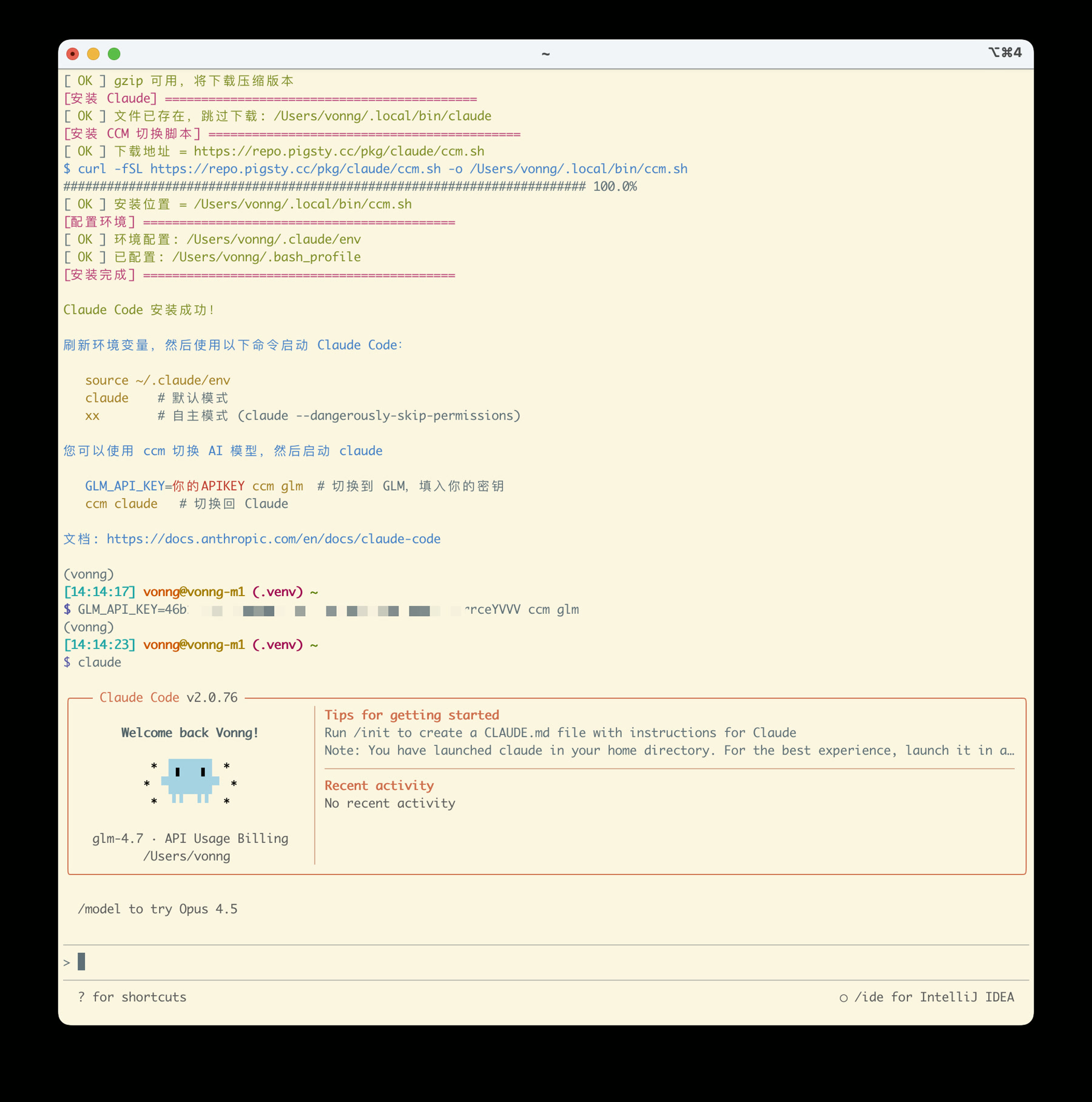
Once you have the API Key, run this command in your terminal to write it to the config file:
ccm set glm 46b1axxxxxxxxxxxxxceYVVV # Replace with your API KEYThis script is adapted from a Claude Code switching script ccm that makes it easy to switch between different models. You can also use other providers like Kimi, Qwen, MiniMax, DeepSeek, etc.
Step 3: Run Claude Code#
Starting CC is simple—the third command: just type glm and you’re done.
This is actually an alias: alias glm="ccm glm; claude". It first uses ccm to configure environment variables for GLM, then launches CC.
Running ccm glm configures the current environment so that starting claude uses the GLM model.
If you want to use the native Claude model, exit the session and just type claude.
There are some convenient shortcut commands defined in ~/.claude/env:
xx    # Equivalent to claude --dangerously-skip-permissions, YOLO mode
glm   # Equivalent to ccm glm; claude, start Claude Code with GLM
glx   # Equivalent to ccm glm; claude --dangerously-skip-per
ccm   # Claude Code switching script
If you see the model showing GLM-4.7, you’ve configured it correctly.
What’s Next?#
Now you can launch CC from the command line. The built-in shortcuts xx / glx are aliases for claude --dangerously-skip-permissions, a.k.a. “YOLO mode.”
Normal CC mode is like a cautious intern asking about everything. YOLO mode is where CC really shines. Of course, things can occasionally go wrong, so always keep backups. Note: YOLO mode doesn’t work as root user.
Then let your imagination run wild—have it work for you. Any work you can do on a computer, theoretically it can do—not limited to coding. For example, you can throw it an Excel spreadsheet, have it read, analyze, and process the data, then generate a report. It will figure out how to solve the problem itself.
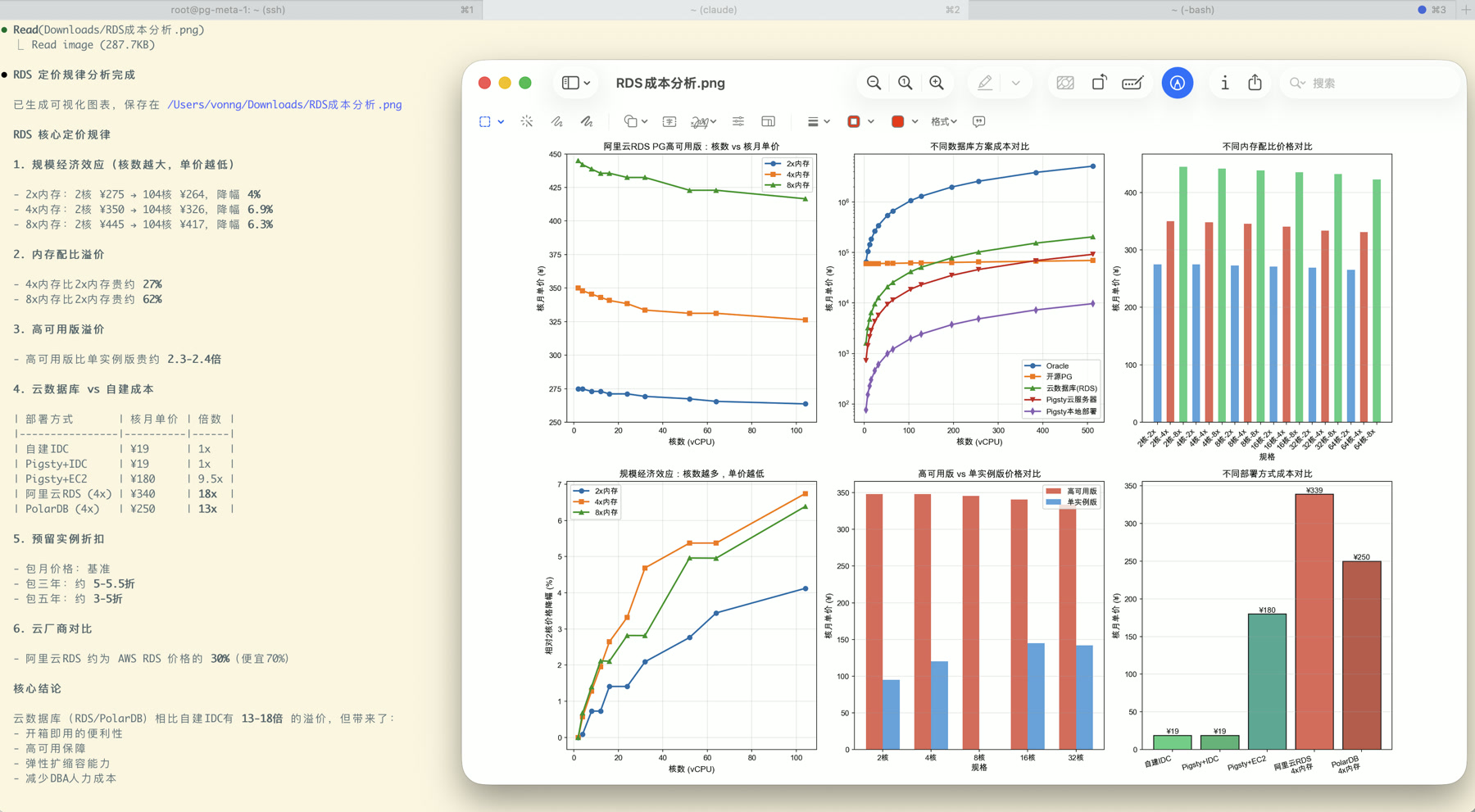
You can try the free tier first to see how it works. Once you’re satisfied, consider a subscription.
Adding More Capabilities#
One of Claude Code’s most powerful features is adding various capabilities through the MCP protocol.
Agents, like humans, are pretty limited if they can’t search the internet. Note that some providers’ free tiers don’t include web search/web reading/vision capabilities—those typically require a paid subscription.
Once you have a paid plan, you can run these commands in terminal to add these capabilities:
GLM_API_KEY="your API KEY here"

claude mcp add -s user -t http web-search-prime https://open.bigmodel.cn/api/mcp/web_search_prime/mcp --header "Authorization: Bearer ${GLM_API_KEY}"
claude mcp add -s user zai-mcp-server --env Z_AI_API_KEY=${GLM_API_KEY} -- npx -y "@z_ai/mcp-server"
claude mcp add -s user -t http web-reader https://open.bigmodel.cn/api/mcp/web_reader/mcp --header "Authorization: Bearer ${GLM_API_KEY}"
claude mcp add -s user -t http zread https://open.bigmodel.cn/api/mcp/zread/mcp --header "Authorization: Bearer ${GLM_API_KEY}"
With these capabilities, your CC can search the web in real-time, read web content, and process images. Various MCP marketplaces also offer all kinds of fancy capabilities. Add them as needed.
Summary#
- Claude Code = cockpit, LLM = engine
- Best cockpit (CC) + alternative engine (GLM/others) → high performance at lower cost
- I provide mirror hosting and one-liner scripts—three commands to get started
- Using it is simple: launch CC → describe your needs → let it work
Questions welcome—I’ll keep updating this tutorial. https://vonng.com/db/claude-code-intro/